How to Use Ollama in Python: Your First Local Request
Use Ollama in Python with a local model. Set up a virtual environment, send a chat request, stream output, and diagnose model or connection errors.
The essentials
- The Python package is a client; install and run the Ollama application separately.
- Use an explicit local address and a downloaded local model for this workflow.
- Check completion and non-empty output before treating a request as successful.
- Record package, server and model details when comparing results.
On this page
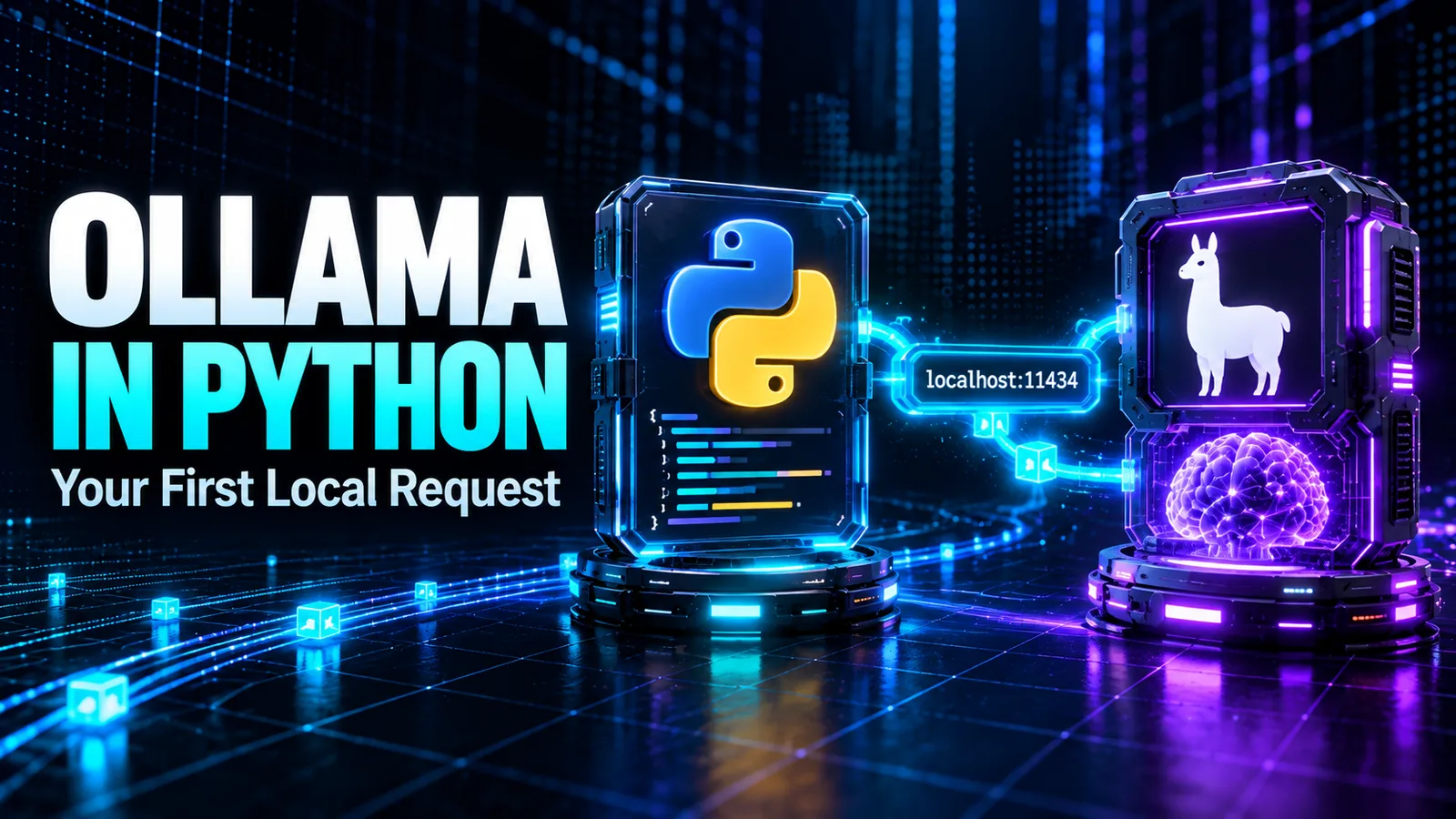
To use Ollama in Python, run the Ollama application, download a local model, install the ollama Python package, and send a chat request to http://127.0.0.1:11434. This tutorial takes you from an isolated Python environment to a response you can inspect, then adds streaming and useful error messages.
This is an AI-assisted, documentation-based guide checked on 14 October 2026. The Python examples were syntax-checked, but were not run against a local model in our editing environment. Output shown below describes the expected shape, not a recorded inference result. You will perform the actual connection and response checks on your computer.
Before you start
You need Python, a terminal, and Ollama running on the same computer as your Python script. The examples use gemma3:1b, the small text model from the existing Ollama installation guide. Follow that guide first if you have not installed the application.
The official model listing identifies the model and its license information. It is a starting point for a short text exercise, not a quality or speed recommendation. Download size alone does not tell you how much memory inference will use.
The Python package and Ollama application are separate installations. Installing a Python library will not start an inference server or download the model for you.
Keep this first exercise in a normal local terminal. A remote notebook, container or WSL distribution can introduce a different network boundary: 127.0.0.1 refers to the environment running Python. If that is your setup, see why a container cannot reach an API on your laptop.
1. Prepare a model and check the application
Run these commands in your terminal:
ollama --version
ollama pull gemma3:1b
ollama list
Confirm that the list includes gemma3:1b. Downloading requires network access and disk space; it is separate from sending the later Python request. If the service is unavailable, open the installed Ollama application or start its service using your operating system's instructions. Do not start an extra server if one is already listening.
Record the application version and the model ID shown by ollama list. A tag is a convenient name, but it is not an immutable record of model contents. Keep those details when reproducing a result later.
The Ollama CLI reference covers model management. This article focuses on what happens after installation.
2. Create an isolated Python environment
Make a new directory for this exercise. On macOS or Linux:
mkdir ollama-python-demo
cd ollama-python-demo
python3 -m venv .venv
source .venv/bin/activate
On Windows, use Command Prompt:
mkdir ollama-python-demo
cd ollama-python-demo
py -m venv .venv
.venv\Scripts\activate.bat
With the environment active, install the package version used for this guide's documentation review:
python -m pip install "ollama==0.6.3"
python -m pip show ollama
python --version
PyPI lists version 0.6.3 with a Python requirement of 3.8 or later. Use a maintained Python release compatible with the package. Pinning this client version makes the example easier to revisit; it does not pin the server, dependencies or model.
Using python -m pip helps install into the interpreter you will actually run. If you use an editor or notebook later, select this same environment there.
Name your script first_local_chat.py. Avoid ollama.py, which can shadow the installed package and produce confusing import errors.
3. Send and validate a local request
Paste this complete script into first_local_chat.py:
from importlib.metadata import version

import httpx
from ollama import Client, ResponseError

MODEL = "gemma3:1b"
client = Client(host="http://127.0.0.1:11434", timeout=120.0)

try:
    response = client.chat(
        model=MODEL,
        messages=[{
            "role": "user",
            "content": "Explain a Python list in two short sentences.",
        }],
        stream=False,
        options={"num_predict": 120},
    )
    answer = response.message.content or ""
    if not response.done or not answer.strip():
        raise SystemExit("No completed, non-empty text response received.")

    print(f"Python client: {version('ollama')}")
    print(f"Model: {response.model}")
    print(f"Completed: {response.done}")
    print(f"Stop reason: {response.done_reason}")
    print("Answer:")
    print(answer)
except ResponseError as exc:
    raise SystemExit(f"Ollama error {exc.status_code}: {exc.error}")
except httpx.TimeoutException:
    raise SystemExit("Request timed out. Check server load and model size.")
except (ConnectionError, httpx.ConnectError):
    raise SystemExit("Cannot connect to Ollama at 127.0.0.1:11434.")
Run it from the active environment:
python first_local_chat.py
The official Python client documents Client, chat messages, response access and error handling. Here, the explicit host makes the destination easy to inspect. The 120-second timeout is an example setting, not a prediction of how quickly your hardware should respond.
Your output should have this shape, with the answer and stop reason supplied by your own run:
Python client: 0.6.3
Model: gemma3:1b
Completed: True
Stop reason: ...
Answer:
...model-generated explanation...
The chat API reference describes completion fields. done indicates that generation finished; it does not prove the answer is correct or complete in meaning. The token cap bounds the exercise. If the stop reason indicates a length limit, the answer may be cut off even though the request finished successfully.
Read the answer. A Python list is an ordered, mutable collection. Check whether the model conveys those ideas accurately and follows the two-sentence request. A successful network response and a useful explanation are separate checks.
4. Stream the answer as it arrives
Once the complete response works, create a second file named stream_local_chat.py:
from ollama import Client

client = Client(host="http://127.0.0.1:11434", timeout=120.0)
finished = False
parts = []

for chunk in client.chat(
    model="gemma3:1b",
    messages=[{"role": "user", "content": "Give one example of a Python list."}],
    stream=True,
    options={"num_predict": 120},
):
    text = chunk.message.content or ""
    parts.append(text)
    print(text, end="", flush=True)
    finished = finished or bool(chunk.done)

print()
if not finished or not "".join(parts).strip():
    raise SystemExit("Stream ended without completed, non-empty text.")
Run python stream_local_chat.py. Streaming lets the terminal display chunks before the complete answer is available. It does not establish that total generation is faster. This shorter example lets exceptions produce a traceback; reuse the first script's error handling when integrating it into an application.
The client handles the stream for you. If you later use raw HTTP instead, consult the streaming format documentation: a stream contains multiple newline-delimited JSON objects, not one ordinary JSON response.
5. Diagnose the stage that failed
| Symptom | What to check next |
|---|---|
ModuleNotFoundError: No module named 'ollama' |
Run python -m pip show ollama in the same terminal and verify the active interpreter. |
Import mentions a local ollama.py file |
Rename your script so it does not shadow the package. Restart the interpreter. |
| Cannot connect | Check the application/service, host and port. Confirm Python and Ollama share the intended network environment. |
| A 404 response mentions the model | Run ollama list and match the full model tag. Pull the missing model deliberately. |
| Request times out | Check server logs and memory pressure. Try a shorter prompt or smaller model before simply extending the timeout. |
| Completed request but poor answer | Review the prompt and model choice. Network success does not validate generated facts. |
Ollama's error reference distinguishes HTTP errors from errors arriving during a stream. Keep the actual message when diagnosing a failure; do not assume every 404 means the same problem.
If the first request is much slower than later ones, use the first-response diagnostic guide to separate loading from generation. If you expected GPU execution, check the CPU fallback guide. Avoid changing the model, Python environment and server configuration all at once.
6. Keep a reproducible result
Save your prompt, script, application version, client version, model ID and observed answer together. In this exercise's isolated environment, you can also capture installed Python dependencies:
python -m pip freeze > requirements.txt
Repeat the same small task before trying a larger application. A second run can produce different wording. Judge it against explicit requirements rather than requiring a particular sentence. Our prompt regression testing guide explains how to compare changes with a small fixed set of cases.
This workflow uses a downloaded model and an explicit loopback address. Those choices do not audit other software on the computer or every possible Ollama configuration. If offline use is your goal, follow the local AI offline verification procedure after downloads are complete.
You now have a bounded integration exercise: establish a connection, request text, check completion, inspect the answer, and preserve enough detail to diagnose a later change. Add conversation history, retrieval or application-specific validation only after that basic path works.
Practical guides published by Lucivo, developed with AI assistance and references to official documentation. Examples are illustrative unless a guide explicitly documents a hands-on test. Check the linked sources for current product details.
Related articles
Prompt Regression Testing: Test LLM Model Updates

Best Local LLMs for 16GB RAM: 4 Models Compared

MCP Permissions Audit: What Can an AI Agent Access?
The Weekly Breakdown
High signal AI & software stories.
Direct to your inbox. No hype.
Independent analysis of AI models, developer tools, and computing architectures. Delivered every Sunday morning. 100% free.