How to Run AI Locally With Ollama: A Beginner's Setup Guide
Install Ollama, run a small local model, check CPU or GPU usage, and troubleshoot slow responses without assuming every AI feature stays offline.

Executive Summary · In 30 Seconds
- Start with a small local model and a short task before choosing larger downloads.
- Use ollama list and ollama ps to inspect installed and running models.
- A local model can run after its download without cloud inference; cloud models and connected tools are separate choices.
- Memory use depends on the model, quantization, context length and other running applications.
On this page
The shortest path to local AI is to install Ollama, download a small local model, and try a simple prompt. You do not need to build an agent, connect a database or buy a new GPU to find out whether the workflow is useful on your current computer.
This guide follows the Ollama quickstart and command-line documentation. It does not report hardware benchmarks or claim the commands were tested on every supported operating system.
What runs on your computer?
Ollama manages models and runs inference: the calculation that generates an answer from your prompt. With a local model, the model files and that calculation are on your machine. This differs from sending a prompt to a hosted model.
That distinction matters because Ollama also supports cloud functionality. Installing a local application does not make every model it can access local. Check the model you select, and review any separate chat interface or tools you connect.
Local execution is useful when you want to experiment with a model, work offline after downloading it, or control where inference happens. It is not a guarantee of better answers. Use the same AI-answer verification checklist you would use with a hosted assistant.
1. Install Ollama for your operating system
Start at the official Ollama download page. Choose the instructions for Windows, macOS or Linux. Use the current platform instructions rather than copying an installation command from an unrelated tutorial.
After installation, open a new terminal and check:
ollama --version
If the command is not found, restart the terminal and check that installation completed. On systems where the background service is not running, consult the platform instructions before starting another copy.
Keep some free disk space for model downloads. A model's file size is not a complete estimate of its runtime memory requirements.
2. Try a small model first
The official Gemma 3 model listing includes a one-billion-parameter variant. It is a modest starting point for a text experiment, not a recommendation that it is the strongest model for your work:
ollama run gemma3:1b
The first run downloads the model if it is not already installed. Subsequent runs can use the local files. Check the model's applicable license before incorporating it into a product.
At the prompt, try a task whose answer you can evaluate:
Explain the difference between a file and a folder in three short sentences.
Then give one everyday analogy. Do not add facts about my computer.
The expected result is a readable answer, not a fixed benchmark score. If it stalls or produces poor output, you have learned something about this model and setup without committing to a large download.
Use /bye to leave the interactive chat. Ollama's CLI reference documents model management and server commands.
3. Check what is installed and what is running
These commands answer different questions:
ollama list
ollama ps
list shows downloaded models. ps shows currently loaded models and information about how they are running. The Ollama FAQ explains the processor information, including CPU/GPU allocation.
To unload this model when you finish:
ollama stop gemma3:1b
Stopping a loaded model does not remove its downloaded files. That distinction is useful when you want to free memory but keep the model for another session.
4. Understand the limits before choosing a larger model
There is no single RAM requirement that applies to all local AI. Model size, numerical precision, context length and concurrent requests affect memory use. Other applications also compete for memory.
Use this decision table before upgrading anything:
| What you observe | First thing to try |
|---|---|
| Long delay during the first run | Distinguish model download and loading from answer generation |
| Short prompts work; long documents struggle | Reduce input length and process one section at a time |
| The computer becomes sluggish | Close competing workloads or select a smaller model |
| Answers are fast but unsuitable | Try clearer examples; evaluate a different model if needed |
| You expected GPU acceleration | Check ollama ps and the current hardware documentation |
These are troubleshooting suggestions, not promises that every issue has a memory-related cause. If a problem persists, collect the exact error and use Ollama's troubleshooting documentation.
5. Keep local and cloud behavior separate
If you specifically want local-only operation, the FAQ documents the OLLAMA_NO_CLOUD=1 setting. Follow the environment-variable instructions for your operating system and restart the relevant Ollama application or service after changing its configuration.
Use an ordinary downloaded local model, not a cloud model. After a successful download and first run, repeating a simple prompt while disconnected is a useful functional check of your offline workflow. It is not a complete audit of every application on your machine.
Keep the service on its default local interface unless you deliberately configure authenticated access for other devices. There is no need to expose an inference server publicly for this beginner setup.
What to do after the first successful answer
Choose one recurring task and five representative examples: rewriting your own notes, explaining short code snippets or classifying sample text. Keep the prompts and record where the model succeeds or fails. Change one variable at a time so you can tell whether a different prompt or model helped.
If you want answers grounded in a document collection, running the model is only one part of the system. Our RAG explainer describes how retrieval supplies relevant material. If you are deciding whether that system needs training too, see RAG versus fine-tuning.
Common Questions & Practical Answers
A downloaded local model can run without an internet connection. Installation, new model downloads, cloud models and web-connected integrations require connectivity.
Practical guides published by Lucivo, developed with AI assistance and references to official documentation. Examples are illustrative unless a guide explicitly documents a hands-on test. Check the linked sources for current product details.
Related articles
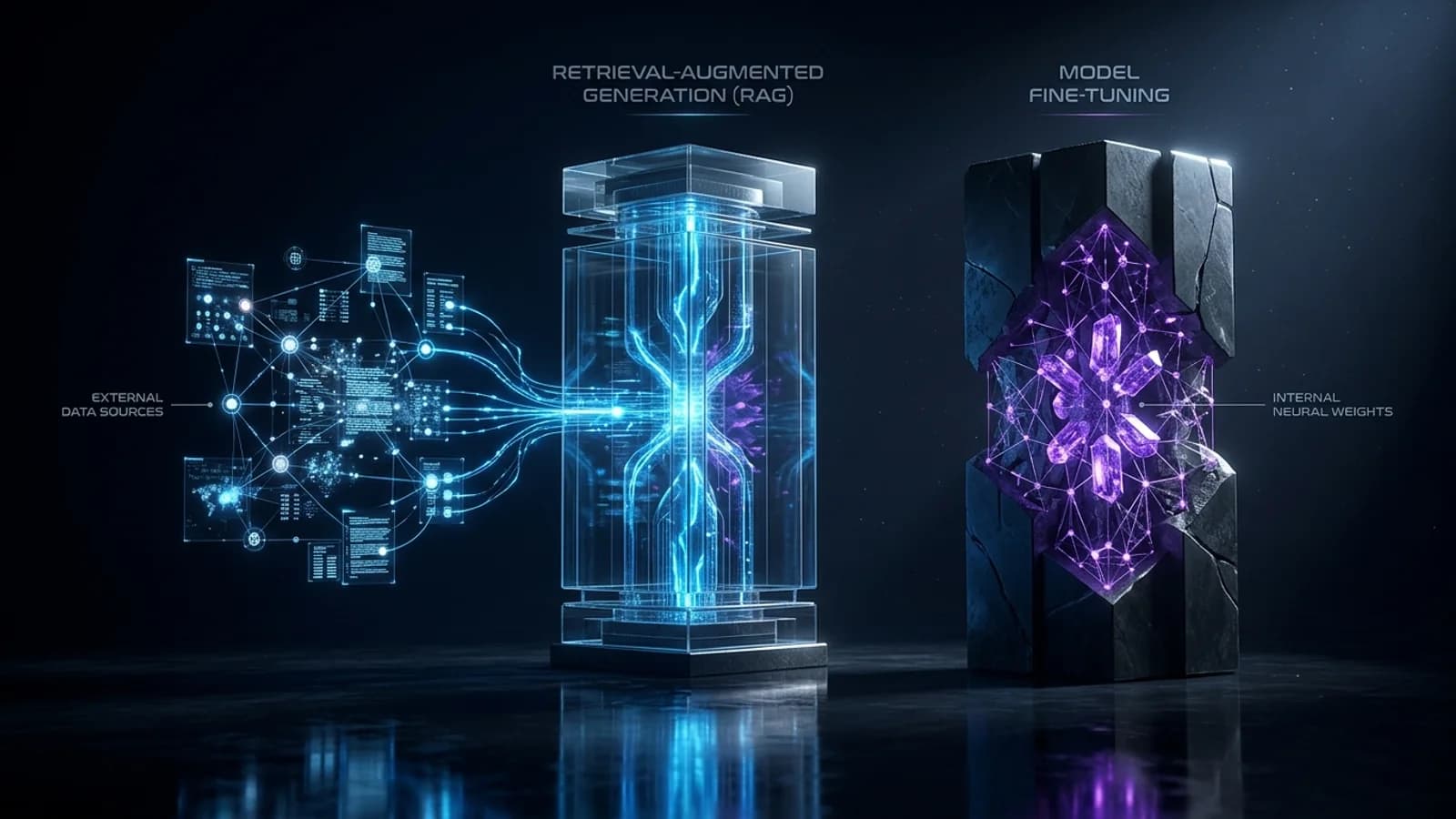
RAG vs Fine-Tuning: Which Does Your AI Project Actually Need?
Cursor vs Windsurf: What Changes in Real-World Coding?

How to Check AI Hallucinations Before You Trust an Answer
The Weekly Breakdown
High signal AI & software stories.
Direct to your inbox. No hype.
Independent analysis of AI models, developer tools, and computing architectures. Delivered every Sunday morning. 100% free.