RAG Cannot Read a Scanned PDF: What to Check
Diagnose scanned-PDF failures by checking OCR, reading order, indexing and retrieval before changing prompts or replacing the language model.
The essentials
- A scanned PDF can contain pictures of words without usable text for retrieval.
- If the extraction stage returns little or nothing, the language model never receives the evidence.
On this page
A scanned PDF can contain pictures of words without usable text for retrieval. If the extraction stage returns little or nothing, the language model never receives the evidence. Check extracted text before changing the prompt or increasing the model size.
Compare one working page with one failing page
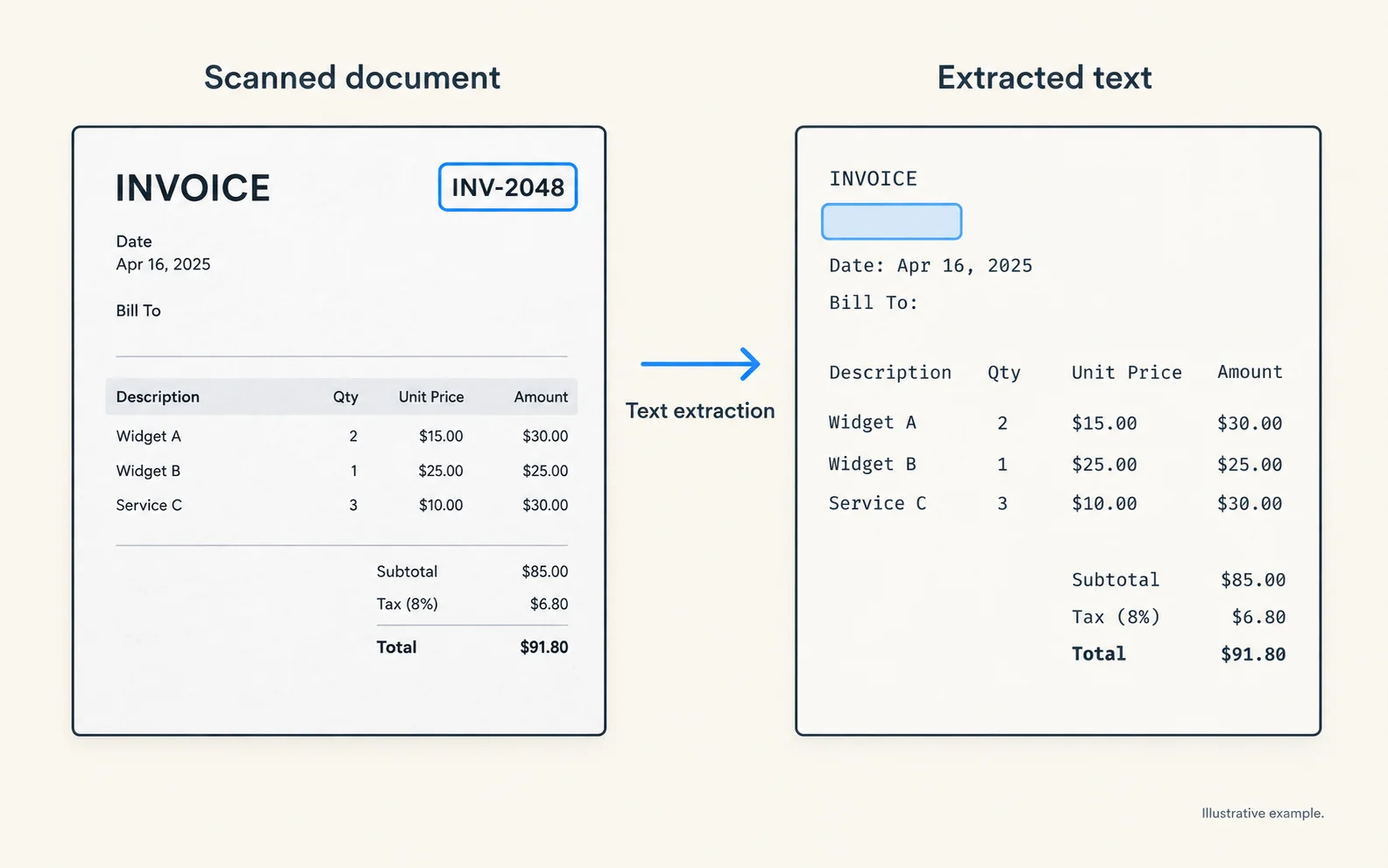
Choose a page with an answer you can verify visually. Try selecting and copying the relevant sentence. That is a useful clue, though not a complete test: a PDF may have an invisible text layer that is inaccurate or out of order.
Next, inspect the text produced by the application's parser. Look for missing words, merged columns, incorrect digits and repeated headers. Record the PDF page index as well as any printed page number.
Open WebUI's document extraction guide describes extraction engines as a separate configurable stage. Upload success does not certify extraction quality.
Choose the repair from the evidence
| Observation | Likely investigation |
|---|---|
| Empty text | OCR capability and processing errors |
| Correct words, wrong sequence | Layout and reading-order handling |
| Wrong account codes or dates | OCR quality, resolution and language |
| Good extracted text, no answer | Indexing or retrieval |
| Correct retrieved sentence, wrong answer | Generation and evidence interpretation |
Historical upstream discussion of scanned PDFs demonstrates the user problem. It does not establish that every current version has the same limitation.
Use a page-level acceptance test
Create three questions from one page: an exact identifier, a sentence-level fact and a relationship between two nearby items. Write down the expected answers from the source image.
After changing the parser, confirm that the document is processed again through the relevant extraction and indexing stages. Do not assume refreshing the chat regenerates embeddings or replaces previously extracted content.
Ask the questions in a fresh conversation with the intended document selected. Inspect which passages were retrieved. This separates a corrected parser from a stale index or old chat context.
Handle uncertainty explicitly
If OCR cannot distinguish “0” from “O,” keep the uncertainty visible. Do not let a plausible-looking answer become an authoritative record. For an important identifier, provide the original page crop or a source link for human verification.
A better reader-facing answer is “The scan appears to show X; verify this field on page Y” than a confident reconstruction from poor evidence.
Finish with a reproducible record
Keep the source fixture, parser version, extracted passage, retrieval result and final answer together. The test is complete when the evidence survives all stages, not when the application merely accepts the file.
See how RAG works for the pipeline, and how to check AI hallucinations for the final answer review.
Related troubleshooting
This guide draws on the linked documentation. Examples are illustrative unless explicitly identified as measured results.
Practical guides published by Lucivo, developed with AI assistance and references to official documentation. Examples are illustrative unless a guide explicitly documents a hands-on test. Check the linked sources for current product details.
Related articles
Stop Repeated AI Agent Tool Calls
AI Transcription Invents Words in Silence
Change Embedding Models Without Mixing Vectors
The Weekly Breakdown
High signal AI & software stories.
Direct to your inbox. No hype.
Independent analysis of AI models, developer tools, and computing architectures. Delivered every Sunday morning. 100% free.